Quick Answer: How to Pause Piso WiFi 10.0.0.1 on Windows 10 / 11
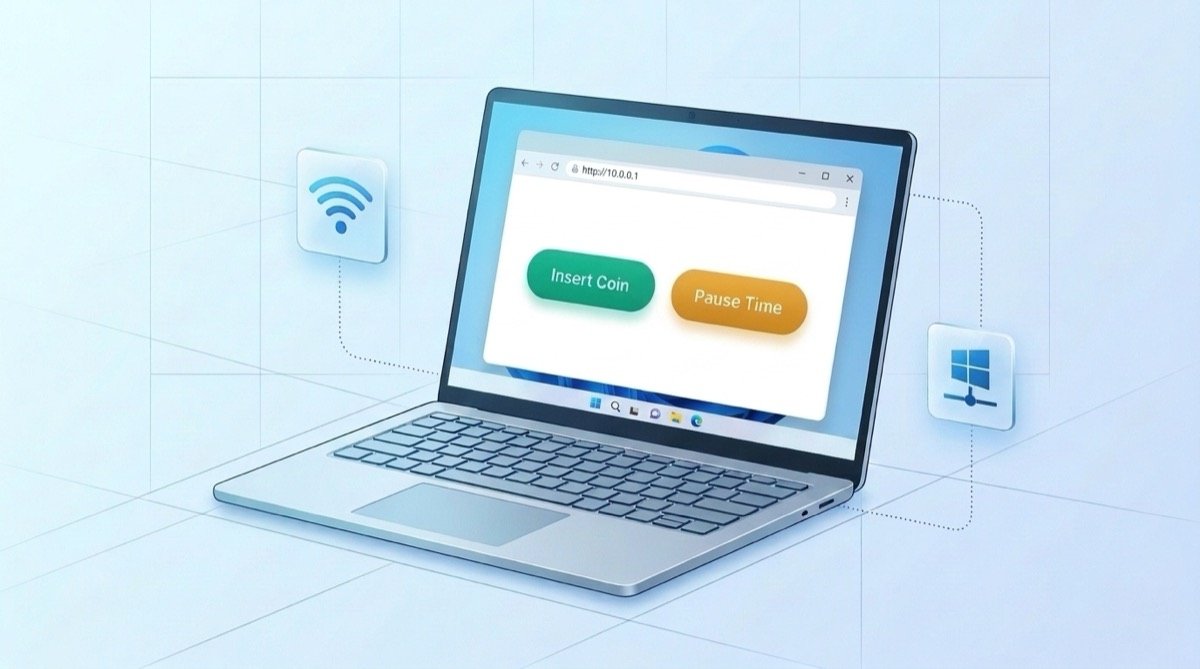
Connect your Windows 10 or Windows 11 laptop to the Piso WiFi hotspot, disable Random Hardware Addresses in Wi-Fi settings, open Chrome or Microsoft Edge, and type http://10.0.0.1 (with http://, not https://). Click Pause Time before closing your laptop lid or disconnecting.
Students doing online classes, freelancers uploading files, and gamers on laptops often run into an annoying quirk: Piso WiFi portals pop up automatically on Android phones, yet stay completely blank on Windows 10 and Windows 11 PCs. Even worse, Windows updates sometimes turn on randomized Wi-Fi MAC addresses, wiping your paused hours the next time you reconnect.
Step-by-Step: Connect & Pause Piso WiFi 10.0.0.1 on Windows 10 / 11
- Connect to the Piso WiFi SSID: Click the Wi-Fi icon on the Windows taskbar (bottom-right), select your vendo’s network name, and click Connect. Seeing “No internet, open” is completely normal before you insert a coin.
- Turn OFF Random Hardware Addresses (Crucial for Pause Time):
- Windows 11: Open Settings → Network & internet → Wi-Fi → Manage known networks → [Your Piso WiFi SSID] and set Random hardware addresses to Off.
- Windows 10: Open Settings → Network & Internet → Wi-Fi and toggle Use random hardware addresses to Off.
- Trigger the Portal Manually in Chrome or Edge: If Microsoft Edge does not pop up the login page automatically, open a new tab and type
http://10.0.0.1directly into the address bar. - Insert Coin or Redeem a Voucher: Click Insert Coin on screen, wait for the vendo beep, drop your ₱1/₱5/₱10 coin, and click Done Paying.
- Pause & Resume Your Session: Whenever you need a break, reopen
http://10.0.0.1and click Pause Time. Bookmark that exact URL on your Chrome/Edge bookmarks bar so you can pause in one click.
Why 10.0.0.1 Won’t Open on Windows 10 / 11 (And Exact Fixes)
| Windows Issue | Why It Happens | Fastest Windows Fix |
|---|---|---|
| No captive portal popup on connect | Windows NCSI probe cached or blocked | Open http://10.0.0.1 or http://neverssl.com in Edge/Chrome |
Browser forces https://10.0.0.1 | Chrome/Edge HTTPS-First Mode or HSTS cache | Open an InPrivate/Incognito window and type http://10.0.0.1 |
DNS_PROBE_FINISHED_NO_INTERNET | Custom DNS (1.1.1.1 / 8.8.8.8) set on Wi-Fi adapter | Set IPv4 IP & DNS to Automatic (DHCP) in adapter settings |
| Paused minutes gone after sleep/restart | Random Hardware Addresses changed laptop MAC | Keep Random Hardware Addresses Off for that SSID |
Pro Tip: Flush Windows DNS & Verify Your Vendo Gateway IP
If your laptop still refuses to load 10.0.0.1—for example, when the vendo uses 10.10.10.1 or 20.0.0.1—press Windows Key + R, type cmd, and run two quick commands:
ipconfig /flushdns
ipconfig | findstr /i "Default Gateway"
The IP printed beside Default Gateway (usually 10.0.0.1, 10.10.10.1, or 20.0.0.1) is the exact portal address of the vendo your laptop is connected to. Type http:// followed by that exact IP in your browser and the login screen will open immediately.
Quick Windows Tip for Saving Piso WiFi Time
Windows Update and OneDrive sync silently burn through bandwidth as soon as your Piso WiFi session starts. Open Settings → Network & internet → Wi-Fi → [Your Piso WiFi SSID] and switch Metered connection to On. That keeps Windows from downloading gigabyte updates while you’re paying per hour, making browsing and online classes much smoother.
Frequently Asked Questions
Can I pause Piso WiFi on a Windows 10 laptop and resume on my phone?
Only if the vendo runs a Voucher Code system (like JuanFi or LPB vouchers) and you entered a transferable voucher. Coin-based sessions are locked to your laptop’s MAC address, so you must resume on the same laptop.
Does closing my laptop lid automatically pause Piso WiFi time?
No. Putting Windows to sleep disconnects Wi-Fi, but the vendo server keeps counting down your minutes unless you manually open http://10.0.0.1 and click Pause Time first.