Quick Answer: How to Pause Piso WiFi Time in Google Chrome
While connected to the Piso WiFi network with Mobile Data OFF, open Google Chrome, tap the top address bar, and type http://10.0.0.1 (never https://). Once your countdown timer loads, tap Pause Time. If Chrome refuses to open the page, switch to an Incognito tab and turn off Chrome’s Use Secure DNS setting.
Google Chrome is the #1 browser Filipinos use to open 10.0.0.1 Piso WiFi—yet recent Chrome updates are also the #1 reason the pause screen suddenly stops loading. Features designed for public websites (like Always use secure connections and Secure DNS / DoH) accidentally block local HTTP vendo portals.
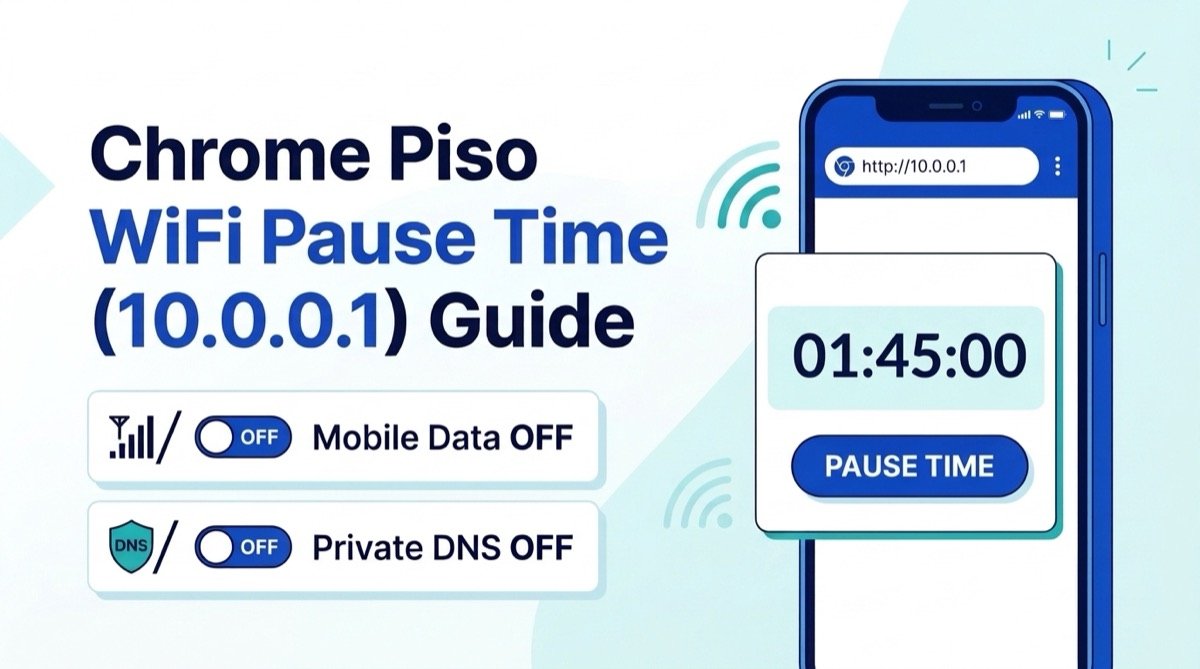
Chrome Piso WiFi Pause Time 10.0.0.1 Guide
How to Pause & Resume Piso WiFi Using Chrome (4 Quick Steps)
Stay connected to the Piso WiFi SSID & disable Mobile Data: Chrome prioritizes active 4G/5G data when Wi-Fi looks restricted, causing 10.0.0.1 to time out.
Open Chrome and type http://10.0.0.1 in the URL bar: Don’t type it in the Google Search widget on your home screen—type it inside Chrome’s top address bar so it navigates directly to the local IP.
Tap “Pause Time”: Wait 2 seconds for the confirmation message (e.g., “Time Paused — 01h 24m remaining”) before turning off Wi-Fi or walking away.
Resume later in Chrome: Reconnect to the same vendo with Use Device MAC enabled, reopen http://10.0.0.1 in Chrome, and tap Resume Time.
3 Chrome Settings That Break 10.0.0.1 (And How to Fix Them)
Chrome Setting / Bug
Error You See
Exact Fix Inside Chrome
HTTPS-First Mode
ERR_CONNECTION_REFUSED or https://10.0.0.1 warning
Chrome Menu (⋮) → Settings → Privacy and security → Always use secure connections → OFF
Chrome Secure DNS (DoH)
Portal spins forever or “Site can’t be reached”
Chrome Menu (⋮) → Settings → Privacy and security → Use secure DNS → OFF
Stale Portal Cache / Cookies
Old timer frozen or Pause button unclickable
Open a New Incognito Tab and type http://10.0.0.1
Create a 1-Tap Chrome Home Screen Shortcut for 10.0.0.1
Tired of retyping 10.0.0.1 (and accidentally typing 1.0.0.01 or 10.0.0.0.1) every time you need to pause your session? Pin it straight to your Android home screen in 10 seconds:
Open http://10.0.0.1 successfully in Google Chrome while connected to your vendo.
Tap the three-dot menu (⋮) in the top-right corner of Chrome.
Tap Add to Home screen → name it Piso WiFi Pause → tap Add.
Prefer a dedicated Android utility with built-in gateway auto-detection and rate calculator? You can also grab our lightweight 1001 Piso WiFi Android App (APK).
Frequently Asked Questions
Why does Chrome search Google when I type 10.0.0.1 pause time?
Adding words like “pause time” after 10.0.0.1 turns your entry into a Google web search. Type only http://10.0.0.1 in Chrome’s address bar with no extra words.
Why does Chrome say “Not Secure” next to 10.0.0.1?
Local private IP addresses like 10.0.0.1 do not carry public SSL certificates, so Chrome labels every local router and Piso WiFi portal “Not Secure.” That warning is normal on local HTTP networks—just never enter personal banking or social media passwords on a public hotspot portal.