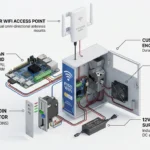
If your neighborhood Piso WiFi runs on JuanFi, you have probably noticed it feels snappier during peak gaming hours than older coin boxes. That is because JuanFi uses a MikroTik router paired with a NodeMCU coin slot controller instead of a single Orange Pi handling everything.
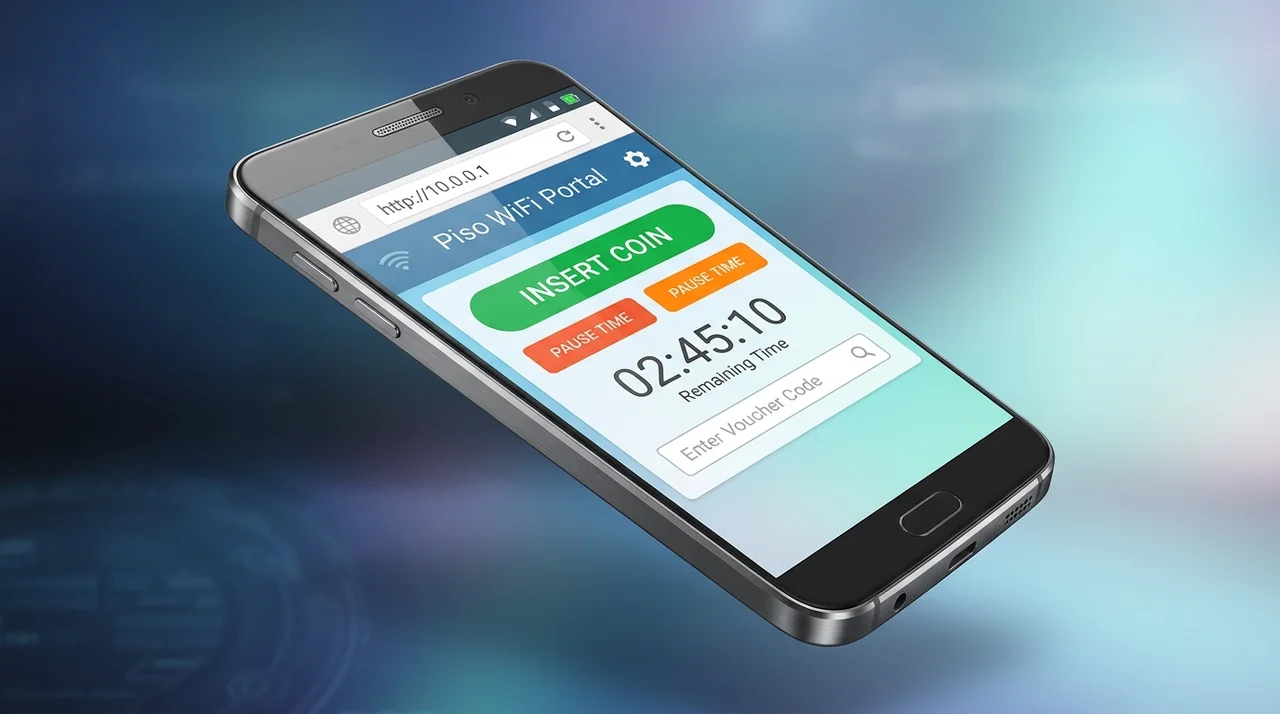
Because it runs on MikroTik Hotspot, a few portal and Pause Time quirks work differently. Here is how to open the 10.0.0.1 JuanFi login portal, keep your paused minutes safe, and troubleshoot common hiccups.
Opening the JuanFi 10.0.0.1 Login Portal
- Turn OFF Mobile Data on your phone before connecting.
- Join the JuanFi Wi-Fi network (usually named something like JuanFi_WiFi or the store owner’s name).
- Wait a few seconds for the automatic captive portal popup. If it does not pop up, open Chrome or Safari and type
http://10.0.0.1directly into the address bar. - Still blank? Some JuanFi installers change the MikroTik hotspot gateway to
10.10.10.1or192.168.88.1. Check your phone’s Wi-Fi details under Router / Gateway IP and type that exact address withhttp://in front.
If your browser keeps timing out or redirecting to HTTPS, follow our 10.0.0.1 Not Working troubleshooting steps.
Insert Coin, Vouchers & Pause Time on JuanFi
- On the JuanFi portal screen, tap Insert Coin. Wait until the portal confirms the coin slot is ready (if another customer is inserting coins right now, JuanFi queues you for a few seconds so your peso does not go to their phone).
- Drop your P1, P5, P10, or P20 coin and verify the added minutes on screen before tapping Done.
- To pause your session later, go back to
http://10.0.0.1and tap Pause Time.
Why Your JuanFi Paused Time Sometimes Vanishes
MikroTik identifies your paused session by your phone’s MAC address. Modern Android and iPhone updates randomize that MAC address by default, so when you walk back an hour later, JuanFi thinks your phone is a stranger:
- On Android: Settings → Wi-Fi → tap the Gear icon beside the JuanFi network → Privacy → switch to Use Device MAC.
- On iPhone: Settings → Wi-Fi → tap the (i) icon → turn OFF Private Wi-Fi Address (or choose Fixed).
Need more help with vouchers or lost minutes? Read our Piso WiFi Pause Time & Voucher Guide.
JuanFi Login Password & Owner Notes
- For Customers: You do not need a username or password to connect. Just use Insert Coin or type a printed Voucher Code into the portal box.
- For Vendo Owners: JuanFi management happens inside MikroTik WinBox (or WebFig on your gateway IP), not a generic
/adminpage. Also keep an eye on router CPU load: an entry-level hAP Lite comfortably handles around 20–30 active users, while busy spots should step up to a hEX Lite / hEX GR3 so coin-slot pulses never lag.
Handy Piso WiFi Tools
- Compare P1, P5, P10, and P20 time rates on 1001pisowifi.com.
- Store your voucher codes offline and launch
10.0.0.1in one tap with the 1001 Piso WiFi Android App.