Piso WiFi One-Click Gateway & Pause Manager
Make sure you are connected to the Piso WiFi network before opening the portal.
Ado Piso WiFi 10.0.0.1 Quick Gateway & Admin Panel
Connect your phone or laptop to the Ado Piso WiFi hotspot first, turn Mobile Data OFF, then tap the portal link below:
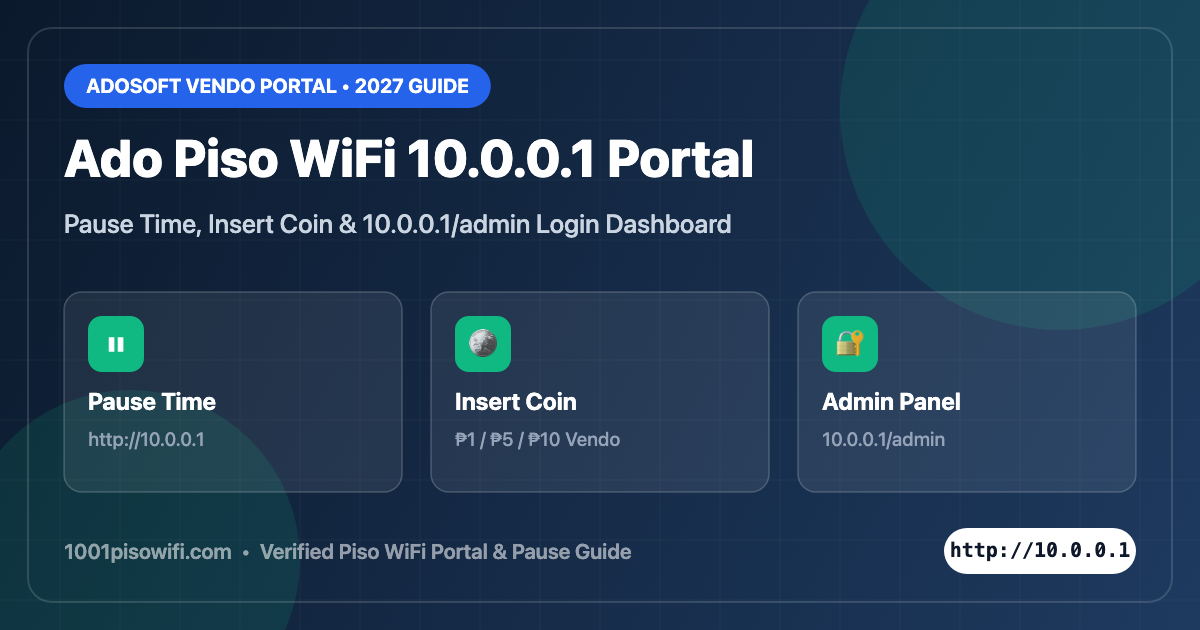
If you are connected to an Ado Piso WiFi vending machine (often searched with spacing typos like 10.0 0.1 ado wifi or 10.0 0.1 ado wifi pause), your browser uses the gateway IP http://10.0.0.1 to insert coins, redeem vouchers, and pause or resume your internet time.
How to Use Ado Piso WiFi 10.0.0.1 Pause Time
- Make sure your device is still connected to the same Ado Piso WiFi SSID and keep Mobile Data turned off.
- Open Chrome or Safari and type http://10.0.0.1 (use
http://, nothttps://). - On the captive portal dashboard, look at your remaining session timer and tap the orange or red Pause Time button.
- Your remaining minutes are saved to your device MAC/cookie session. When you return near the machine, open
http://10.0.0.1again and tap Resume Time.
Tip for Android & iPhone users: If the Pause button says “Time paused” and then disappears after switching WiFi networks, enable Use Device MAC instead of “Randomized MAC” for that Piso WiFi SSID in your phone’s WiFi settings so the Ado machine recognizes your returning phone automatically.
How to Insert Coin on Ado Piso WiFi (10.0.0.1)
- Connect to the Ado WiFi signal and launch http://10.0.0.1.
- Tap the green Insert Coin button on screen and wait for the coin slot LED light on the vendo box to blink or beep.
- Drop ₱1, ₱5, or ₱10 coins one by one (avoid bent coins). Watch the minutes counter on your phone screen increase in real time.
- Tap Done Paying / Connect before the countdown timer expires so your credits activate immediately.
Ado Piso WiFi Admin Login (10.0.0.1/admin)
Vendo owners can manage coin rates, bandwidth speed limits, voucher generation, and firmware updates through the AdoSoft Admin Panel:
- Primary Admin URL:
http://10.0.0.1/admin(orhttp://10.10.10.1/adminon dual-WAN setups) - Default Login Details: Typically printed on the inside board/sticker of your AdoSoft Orange Pi / Raspberry Pi kit, or configured during initial flashing (e.g.,
admin/ custom operator PIN). Always change default admin credentials immediately after setup to lock unauthorized users out of your vendo dashboard. - 2026–2027 Ado Update Features: Supports Multi-Coin Slot + GCash/Maya QR Ph e-loading, Randomized MAC handling via token vouchers, and per-user speed throttling.
AdoSoft vs LPB vs JuanFi Portal IPs Comparison
| Piso WiFi System | Customer Portal URL | Admin Dashboard URL | Pause Time Support |
|---|---|---|---|
| AdoSoft / Ado Piso WiFi | http://10.0.0.1 / 10.10.10.1 | http://10.0.0.1/admin | Yes (Built-in Pause & Voucher Resume) |
| LPB Piso WiFi | http://10.0.0.1 / http://lpb.wifi | http://10.0.0.1/admin | Yes (Pause Time Button) |
| JuanFi / MikroTik | http://10.10.10.1 / 10.0.0.1 | Winbox / WebFig Gateway | Voucher-based Pause & Resume |
Why Won’t 10.0.0.1 Ado WiFi Load? (5 Quick Fixes)
- Check Spacing Typos: Make sure you did not type
10.0 0.1 ado wifior10.0.0..1with a space or extra dot. - Turn Off Mobile Data: Android & iOS often route
10.0.0.1through LTE/5G when WiFi says “No Internet”. Turn Mobile Data off temporarily. - Use HTTP Instead of HTTPS: Browsers auto-upgrade to
https://10.0.0.1and fail with ERR_CONNECTION_REFUSED. Explicitly typehttp://10.0.0.1. - Disable Private DNS / VPN: Turn off Google/Cloudflare Private DNS or any VPN app while opening the portal.
- Clear Browser Cache or Try Incognito: Open a fresh Incognito tab and visit
http://10.0.0.1orhttp://10.10.10.1.
Frequently Asked Questions (Ado Piso WiFi 10.0.0.1)
How do I check my remaining time on Ado Piso WiFi?
Open http://10.0.0.1 while connected to the Ado WiFi SSID. Your active countdown timer and current connection speed are shown right at the top of the portal.
Can I pause time on 10.0.0.1 Ado WiFi and resume tomorrow?
Yes, as long as the machine owner has enabled the Pause Time validity window (for example, 24 hours or 7 days). Always switch your WiFi privacy setting to “Use Device MAC” before disconnecting so your paused balance isn’t lost.