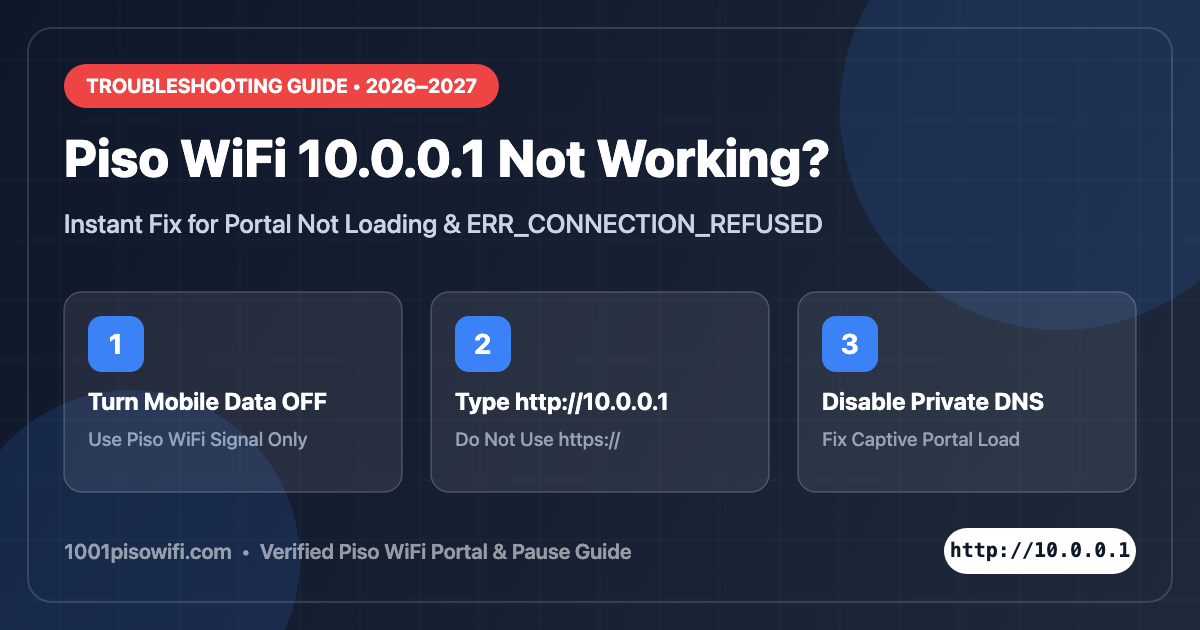
One of the most frustrating experiences with public vending internet in the Philippines is when your phone connects to the WiFi network, but navigating to http://10.0.0.1 shows a blank white screen, infinite loading, or the dreaded “Site can’t be reached” (ERR_CONNECTION_REFUSED / ERR_NAME_NOT_RESOLVED) error. In this guide, you will learn why this happens and how to fix it in under 60 seconds.
Why Is 10.0.0.1 Piso WiFi Not Opening?
The 10.0.0.1 address is not an internet website—it is the local private IP gateway of the router or Raspberry Pi controller powering the Piso WiFi vendo machine (such as LPB, Ado, or MikroTik). When your browser fails to load it, one of the following 4 reasons is usually the cause:
Mobile Data Interference: Your smartphone has active 4G/5G mobile data. Your phone tries to load 10.0.0.1 through your telecom provider (Globe/Smart) instead of the WiFi network.
Private DNS is Enabled: Modern Android and iOS devices use Private DNS (like Cloudflare 1.1.1.1 or Google DNS 8.8.8.8), which blocks local captive portals from redirecting.
Typo in the Address: Entering 10.0 0.1 (with a space), 10.0.0..1 (double dot), or 10.10.10.l (letter L instead of number 1).
Machine Slot / IP Pool Full: The vendo machine has run out of DHCP IP leases or the owner has temporarily disabled portal access.
Top 4 Ways to Fix 10.0.0.1 Piso WiFi Not Loading
Fix 1: Turn Off Mobile Data (Cellular)
Swipe down your notification bar on Android or Control Center on iPhone. Turn OFF Mobile Data completely. Disconnect and reconnect to the Piso WiFi SSID. Now open Chrome and type http://10.0.0.1 directly in the address bar (not the Google search box).
Fix 2: Disable Private DNS
Private DNS is the #1 reason Piso WiFi portals fail on Android 10, 11, 12, 13, and 14:
Open your phone’s Settings > Network & Internet (or Connections).
Tap Private DNS.
Change it from “Automatic” or “Custom” to “Off”.
Reconnect to your Piso WiFi network. The login captive portal will pop up automatically!
Fix 3: Use an Incognito Tab or Clear Browser Cache
Old cached sessions from previous Piso WiFi connections can block the new machine’s portal. Open your browser in Incognito Mode or Private Browsing, and visit http://10.0.0.1 or http://10.0.0.1/status.
Fix 4: Check Alternate Gateway IPs
Not all vendo machines use 10.0.0.1. Depending on whether the owner uses LPB, Ado, or custom OpenWrt firmware, try these alternative portal links:
Vendo Type
Portal Link
Alternative Address
LPB Piso WiFi
http://10.0.0.1
http://lpb.wifi/index.php
Ado Piso WiFi
http://10.0.0.1
http://10.10.10.1
MikroTik Hotspot
http://10.0.0.1
http://192.168.88.1
Custom Router
http://10.10.0.1
http://20.0.0.1
How to Pause Time Once Connected
Once you regain access to the portal, you can pause your session so your remaining coins do not get consumed while you are away:
Navigate to the active portal dashboard at http://10.0.0.1.
Verify your remaining minutes and seconds on the screen.
Tap the yellow or red “Pause Time” / “Stop” button.
Take a screenshot of your Voucher / Session Code. When you return, enter this code into the portal to resume your connection seamlessly.